
The GolfNext app puts your vouchers, your points and the driving range in one place. This is a quick tour of every part of the app and where to find what you need, with links to the guides that go deeper.
Have you not downloaded the app and set up your profile yet? Start with the guide to getting started with the app.
The Bottom Menu
The menu at the bottom of the app is always there. From left to right you find:
- Wallet - your clubs, vouchers and points. The app opens here.
- Shop - products that clubs have put up for sale.
- The green Driving Range button in the middle - to dispense balls.
- Activity - everything you have bought, used and dispensed.
- More - your profile, language, paper vouchers and help.
1. Wallet
The Wallet lists the clubs where you have vouchers or points. Next to each club you see how many vouchers you have there and, if you have points for the driving range, how many. If you have free balls at a club, it says FREE instead.
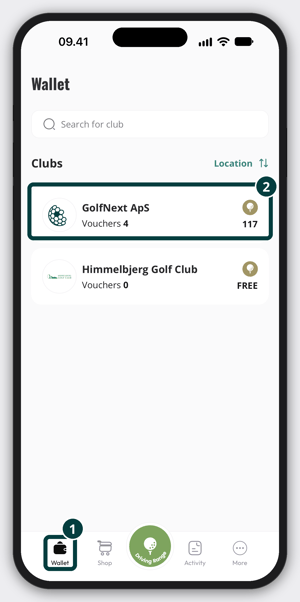
- To find a club fast, type its name in the Search for club field.
- When the app can see your location, the club closest to you shows in a Nearest club card above the list. Tap the cross on the card to hide it.
- Under Clubs, tap Location or A-Z to change the order. The arrow next to it flips the order. These two only show when the app can see your location.
Tap a club to open its page. At the top you see your points at that club (or FREE) if the club has a driving range. If the club sells driving range products in the app, a Top-Up button takes you straight to them. Below that, Your Vouchers shows your vouchers for that club. Tap See all if you have more than the page shows.
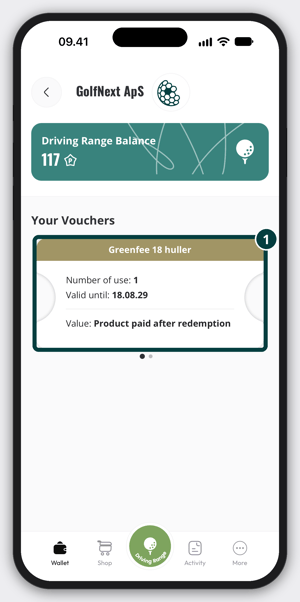
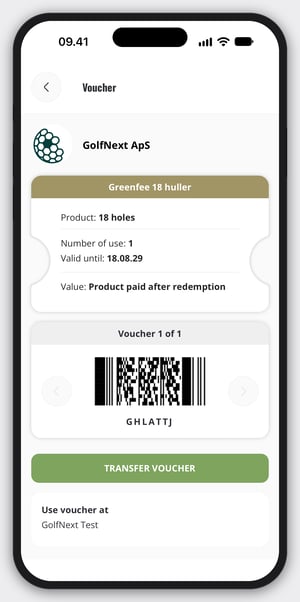
Tap a voucher to see its barcode, where and when it works, and to use or pass on the voucher. The full guide is Vouchers In The App (Wallet). To give a voucher to a friend, see How To Transfer A Digital Voucher To Another Player.
2. Shop
The Shop is where you find what golf clubs and driving ranges sell in the app: driving range points, green fees, buggy cards, lessons and more.
- Tap Shop in the bottom menu.
- Check the country at the top. The app starts with the country you are in. To change it, tap the country and choose another from Available countries.
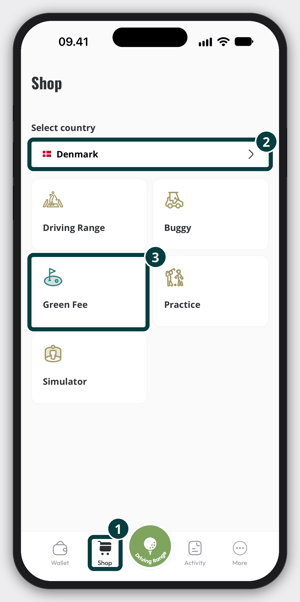
- Tap a category.
- Find your club in the list. You can type its name in the Search for club field. With location on, the closest clubs come first.
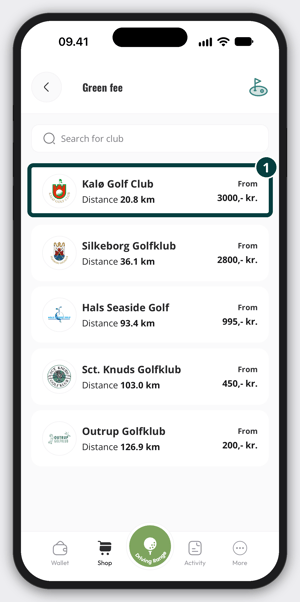
- Tap the club to see its products and buy what you want.
Clubs decide who can buy what, so some products are only for members, sponsors or other groups, and some are limited in number or time. To buy points for the driving range, see How To Purchase Points For Dispensing Balls In The App.
Work at a golf club and wondering how to set up products for the Shop? See Campaign Sale Through Portal Sales.
3. Dispense Balls
Tap the green Driving Range button whenever you want balls at a driving range. The app uses your location to find the dispenser, so allow GolfNext to use your location when it asks. You also need to be close to the ball dispenser.
When the app has found you, the dispenser screen shows:
- Your points at that club, or FREE if you have free balls there.
- Your club's limit, if there is one, for example Max use 30 points within 10 minutes.
- Select dispenser, if the club has more than one dispenser.
- Select basket size, if the club has more than one basket size.
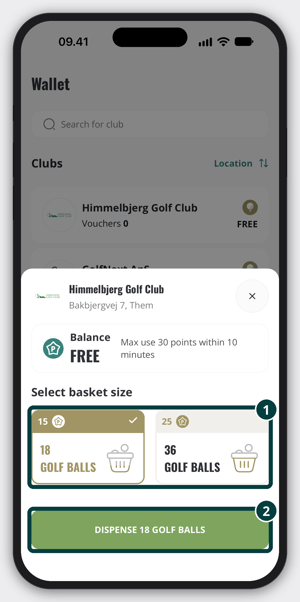
Before you tap the green dispense button in the app, tap GolfNext App on the payment terminal on the dispenser. Then the app and the dispenser can talk to each other.
If you are not at a driving range with GolfNext, or you are too far from the dispenser, the app tells you with You're too far from the ball dispenser. If you see Location access is turned off, allow GolfNext to use your location in your phone's settings.
Have free balls from your club? Using Free Balls With The App goes through every step.
4. Activity
Activity shows everything you do in GolfNext. At the top you find four buttons:
- Paid or received - your purchases and the vouchers you have received. Tap Resend invoice on a purchase to get the invoice emailed to you again.
- Driving Range - how many balls and points you used, listed per club.
- Voucher usage - the vouchers you have used.
- Voucher Transfer - vouchers you have sent or received. The Pending tab shows transfers that are not accepted yet, and the Accepted tab shows the ones that are.
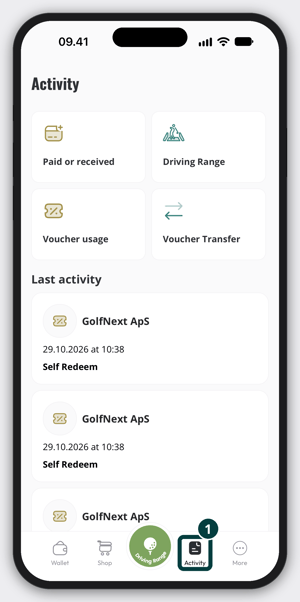
Under Last activity you have your latest activity as a quick list.
5. More
Tap More in the bottom menu for your own settings and help:
- Profile - your name, birthday, email, mobile number, postal code, country and club. Make your changes and tap Update.
- Language - choose the language of the app.
- Import Paper Voucher - move a paper voucher into the app. See Importing A Paper Voucher Into The App.
- FAQ - answers to common questions.
- T&C - the GolfNext terms and conditions.
- Privacy Policy - how we handle your data.
- LOGOUT - sign out of the app. The app asks you to confirm first.
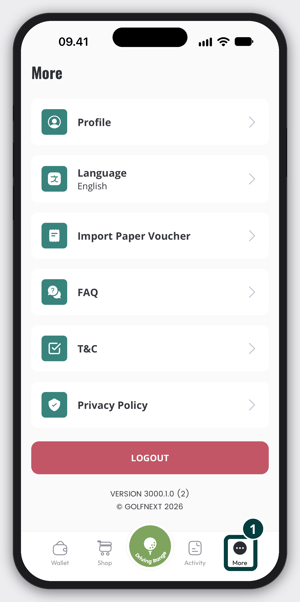
At the bottom you also see the version of the app you are using. Have a question about the driving range or the kiosk? FAQ - For Players / Users has more answers.
Trouble Signing In?
- Forgot your password? See Forgotten Password.
- Not sure which email you used? See Find The Email Connected To The App.
- Using the app in Sweden? See Cannot Log In To The App - Swedish Users.
Under More > Profile you find a DELETE ACCOUNT button. If you delete your account, all your vouchers, gift cards and the like are deleted too, and they cannot be brought back. The app asks you to confirm before it deletes anything.
Thank you for reading - feel free to contact us in case you have any questions, suggestions or general feedback.