
When you transfer a voucher, it moves from your Wallet to your friend's. It is not a copy. If you have several identical vouchers, you choose how many to send.
You can pass a voucher on to a friend straight from the GolfNext app. Your friend only needs an email address.
1. Open The Voucher
- Open the GolfNext app and tap Wallet in the bottom menu.
- Tap the club the voucher belongs to.
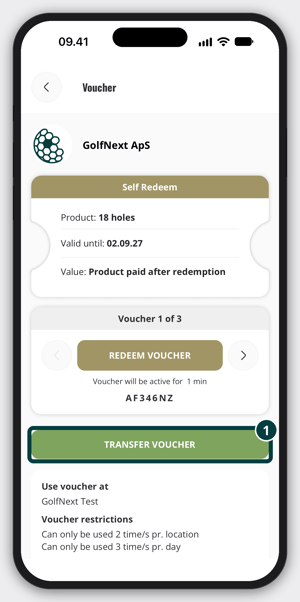
- Tap the voucher you want to send.
2. Transfer The Voucher
- Tap Transfer Voucher.
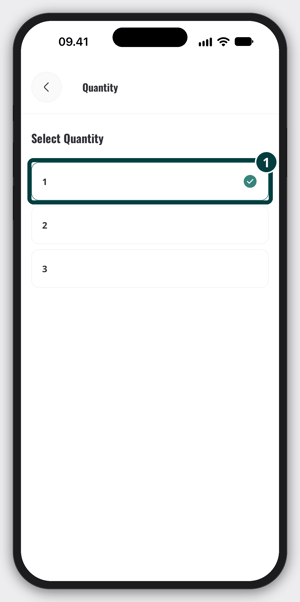
- If you have several identical vouchers, tap the field below Quantity to choose how many to send. The field also shows how many you have. Tap the number you want, and the app picks the vouchers for you.
- Type the email address your friend uses for GolfNext in the Email field. You can also tap the contacts icon at the right end of the field and pick a contact. The first time, your phone asks if the app may use your contacts.
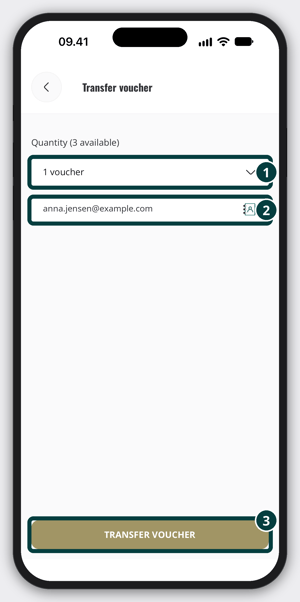
- Tap Transfer Voucher again to send it.
Not sure which email your friend uses? Ask them to look it up with Find The Email Connected To The App.
3. What Happens Next
The app shows Your voucher have been transferred. What your friend sees depends on the email address you used.
- If the email belongs to a GolfNext user, the voucher goes straight to that account. Your friend gets an email and a notification.
- If the email is not registered yet, your friend gets an email with instructions to accept the transfer. Until then, the transfer is pending.
On the confirmation, tap View pending transfer to follow the transfer, or Go to wallet to go back to your Wallet.
4. Follow Or Cancel A Transfer
- Tap Activity in the bottom menu.
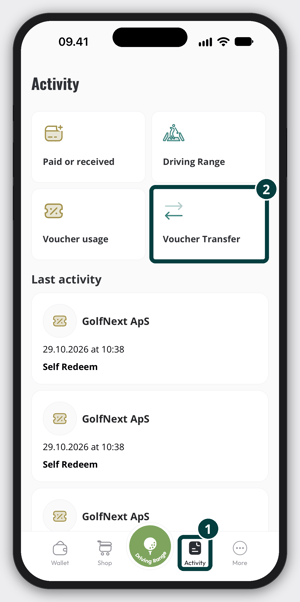
- Tap Voucher Transfer.
- Tap Pending to see transfers your friend has not accepted yet, or Accepted for the ones that are done. Each one shows the email address it was sent to.
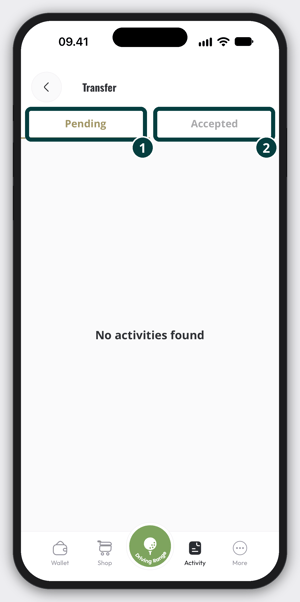
To take a pending transfer back:
- Tap the transfer under Pending.
- Tap Cancel transfer. Tap Go back instead if you change your mind.
The voucher comes back to your Wallet, and we let your friend know by email and notification that you cancelled. You can only cancel a transfer that is still pending. Once your friend has accepted it, the voucher is theirs. If you sent the voucher to the wrong email address and it has already been accepted, contact your club.
When You Can't Transfer A Voucher
- There is no Transfer Voucher button on the voucher. Your club has made it personal or non-transferable.
- The voucher is used up. The Wallet only lists vouchers with uses left.
- The app says Transfer unsuccessful. Please try again. Check the email address and try again.
A voucher with uses left can be transferred. It keeps its uses left, so your friend gets what you had.
Check the email address before you send. The voucher gets a new code when you transfer it, so the code in the original email or on a paper voucher stops working. If your club needs to find the old code, see Locate Changed Voucher Codes.
Thank you for reading - feel free to contact us in case you have any questions, suggestions or general feedback.