
The app finds your club from your phone's location, so allow GolfNext to use your location. You also need to be at the driving range, close to the ball dispenser, for the dispenser screen to open.
When your club gives you free balls, you dispense them with the GolfNext app, just like any other balls. You don't pay, and your club's limit decides how many you can take. Here is how.
1. Get Ready
- Download the GolfNext app and sign in with the account your club gave the free balls to. If your club's membership system is connected, you can sign in with it, for example GolfBox, or MinGolf in Sweden.
- Allow GolfNext to use your location when the app asks.
- Walk to the ball dispenser.
2. Open The Dispenser Screen
- Open the GolfNext app.
- Tap the green Driving Range button in the middle of the bottom menu, between Shop and Activity.
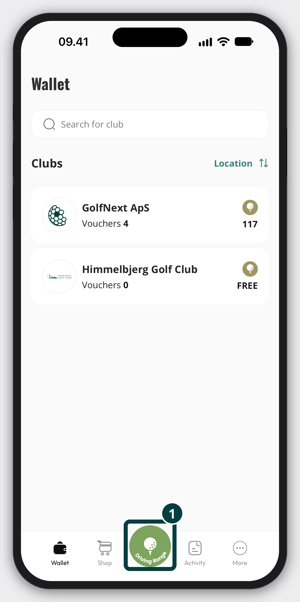
- Wait a moment while the app finds you. The dispenser screen then opens with your club's name at the top.
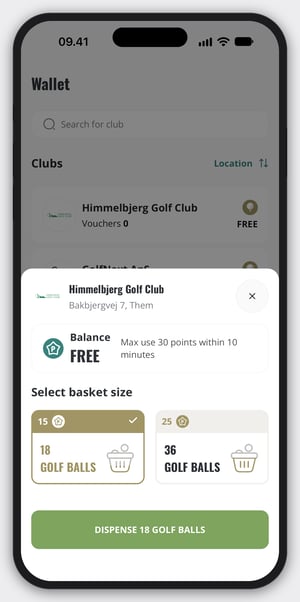
3. Check Your Free Balls
If you have free balls at this club, the app shows FREE where other players see their points. Next to it you see your club's limit, for example Max use 30 points within 10 minutes.
The limit means you can dispense balls for up to 30 points in any 10 minutes. What you dispense counts against the limit for 10 minutes. When the time has passed, you can use it again. Some clubs count balls instead of points, and then it reads, for example, Max use 30 balls within 20 minutes.
Some clubs set a daily limit instead. A daily limit starts over at midnight.
Your club sets the limit. If you think it is too low, ask your club.
4. Choose Dispenser And Basket Size
- Select dispenser - if your club has more than one dispenser, tap the one you are standing at. If there is only one, you won't see this.
- Select basket size - if your club has more than one basket size, tap the one you want. Each size shows how many golf balls it holds. Pick a size within your limit. If your free balls don't cover the whole basket, the app pays with your points instead. If you don't have enough points either, the dispense doesn't go through. If there is only one size, you won't see this.
5. Dispense Your Balls
- Place a basket at the dispenser.
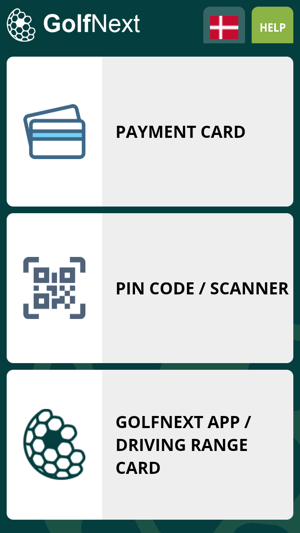
- On the dispenser's payment terminal, tap GOLFNEXT APP / DRIVING RANGE CARD.
- In the app, tap the green button at the bottom. It reads Dispense followed by the number of balls, for example Dispense 50 golf balls.
- The app shows Successfully dispensed, and your balls come out.
If Something Goes Wrong
- Error dispensing, please try again - the dispense didn't go through. With free balls, this often means you have used your limit for now, or the basket is bigger than what you have left. Wait until the time in your limit has passed, or choose a smaller basket. If it keeps happening, contact your club.
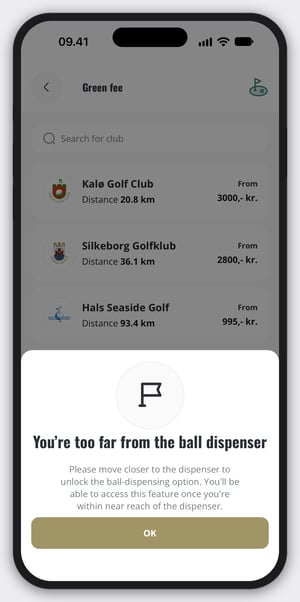
- You're too far from the ball dispenser - move closer to the dispenser and try again.
- We can't tell exactly where you are - precise location is turned off on your phone. Tap Turn on precise location, or turn it on in your phone's settings.
- Location access is turned off - allow GolfNext to use your location in your phone's settings, then open the dispenser screen again.
- We couldn't locate you - check that location services are on, or move to an open area for a better signal. The app keeps trying.
If the app says Dispenser not ready, the dispenser isn't waiting for the app yet. Tap GOLFNEXT APP / DRIVING RANGE CARD on the dispenser's payment terminal first, then tap the green button in the app again.
Thank you for reading - feel free to contact us in case you have any questions, suggestions or general feedback.