
Your club decides what each voucher is worth and where and when it works. The voucher in your Wallet always shows you the details.
All your vouchers live in the Wallet in the GolfNext app. This guide shows you how to find a voucher, use it at the club, and what else you can do with it.
1. Open Your Wallet
- Open the GolfNext app and tap Wallet in the bottom menu.
- You see a list of the clubs where you have vouchers or points. Next to each club, the number of vouchers you have there is shown.
- To find a club fast, type its name in the Search for club field.
- To change the order, tap Location or A-Z above the list. The arrow next to it flips the order. These two buttons only show when the app can see your location.
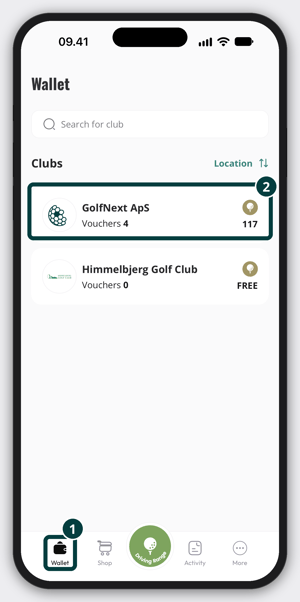
The list only shows clubs where you have vouchers or points. If you don't have any yet, the app tells you that clubs will show up here once you do. You can get vouchers from your club or in the Shop tab.
2. Find Your Vouchers At A Club
- Tap the club in the list. The club page opens with the club's name at the top.
- Under Your Vouchers you see your vouchers as cards. Swipe left and right to move between them. The page shows up to three cards.
- If you have more, tap See all to open the full list.
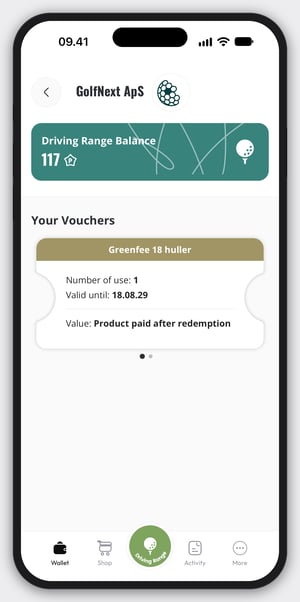
Each card shows:
- The name of the voucher and the product it is for.
- How many uses it has left. Some clubs hide this.
- The date it is valid until.
- What it is worth: a discount in percent, an amount off, a set price, or a product you pay for after redemption.
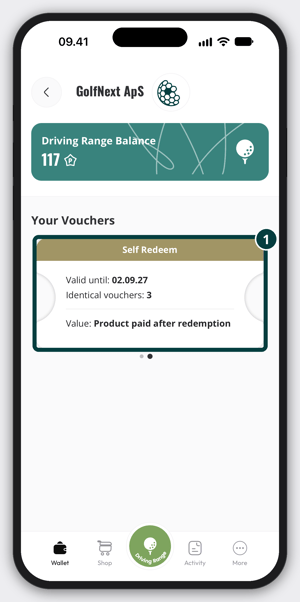
If you have received several identical vouchers, you only see one card. It shows how many you have under Identical vouchers.
A Golf Circle card also has a Uses left button. It shows how many uses you have left at each club.
The list only shows vouchers you can still use. If a club has no vouchers for you, the page offers a Visit Shop button.
3. Open A Voucher
Tap a card to open the voucher. The screen shows:
- The club's logo and name, and the voucher card.
- A barcode and the voucher number, or a Redeem voucher button if the voucher can be redeemed from your phone. See the next section.
- Under Use voucher at, the places where the voucher works.
- Under Voucher restrictions, the rules for when and how often you can use it, if the club has set any.
- A Transfer Voucher button, if the voucher can be passed on.
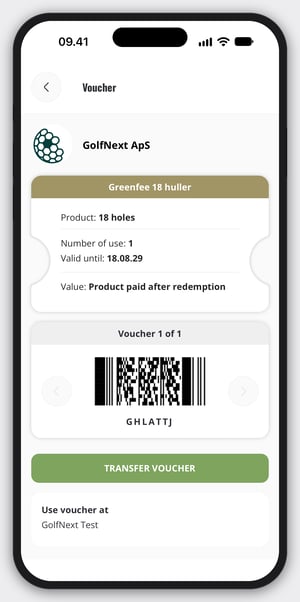
If you have several identical vouchers, the text Voucher 1 of 3 (for example) shows which one you are looking at. Use the left and right arrows next to the barcode to move to the next one. Each one has its own barcode.
4. Use A Voucher At The Club
There are two ways, depending on how your club has set up the voucher.
Show the barcode
- Open the voucher in the Wallet.
- Let the staff scan the barcode at the club's point of sale. If the scanner has trouble, they can type in the voucher number shown under the barcode.
Redeem it yourself
If you see a Redeem voucher button instead of a barcode, you redeem the voucher yourself in the app.
- Make sure you are at the club and that the app may use your location.
- Tap Redeem voucher.
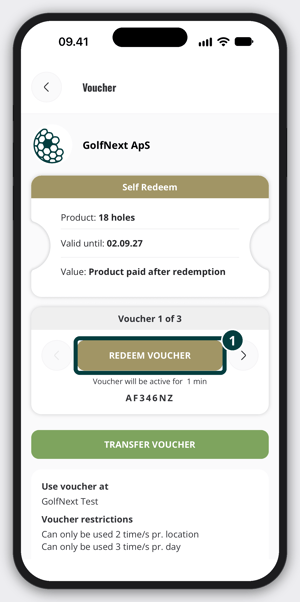
- Choose under Number Of Uses how many uses to redeem now, then tap Confirm.
- When the app says Voucher redeemed, the voucher is active. It shows how many vouchers are active and how much time is left. Show the screen to the staff if they ask.
Some vouchers must be used within a set number of minutes after you redeem them. You can see how long you have under the button.
If the app says you are too far away or can't find your location, check that location sharing is on for GolfNext in your phone settings, and try again at the club.
5. Transfer A Voucher To Someone Else
Open the voucher and tap Transfer Voucher. If you have several identical vouchers, choose the quantity. Enter the email address your friend uses for GolfNext and tap Transfer Voucher again.
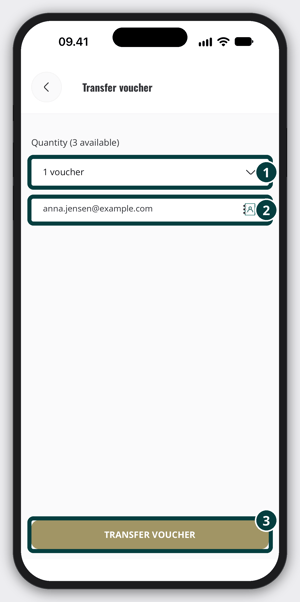
- If the email belongs to a GolfNext user, the voucher goes straight to that account.
- If not, your friend gets an email with instructions to accept the transfer.
- Tap View pending transfer on the confirmation to follow the transfer.
You don't see the Transfer Voucher button on a voucher the club has made personal or non-transferable.
For the full steps, see How To Transfer A Digital Voucher To Another Player. Not sure which email your friend uses? Find The Email Connected To The App shows how.
6. Add A Paper Voucher
Got a paper voucher? Open More in the bottom menu and tap Import Paper Voucher. Scan the barcode on the paper voucher or type in the code. Once it is imported, the voucher is in your Wallet and the paper voucher no longer works.
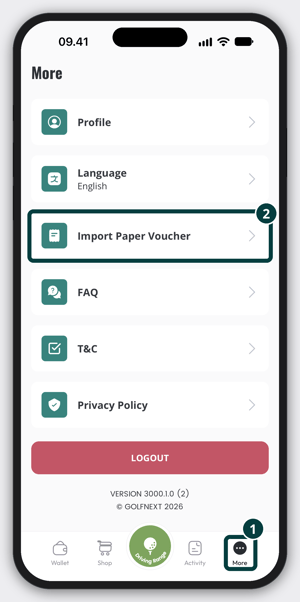
The steps are in Importing A Paper Voucher Into The App.
A voucher gets a new code when you import it from paper or when someone transfers it to you. The code in the app is then different from the one on the paper voucher or in the original email. If your club needs to find the original code, see Locate Changed Voucher Codes.
Thank you for reading - feel free to contact us in case you have any questions, suggestions or general feedback.