How to use a voucher
-
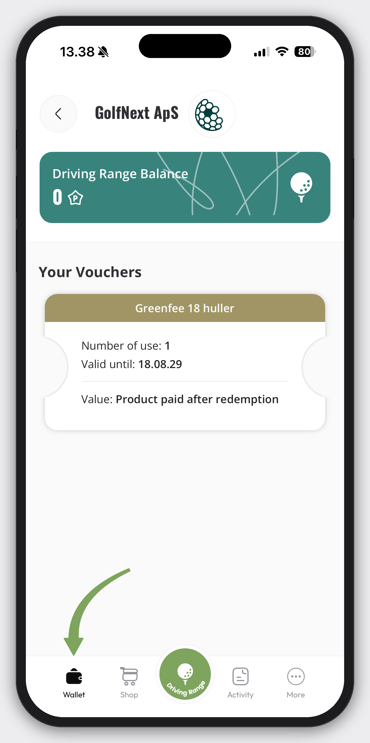
To get started, open the GolfNext app and go to 'Wallet'
-
You'll now see an overview of the vouchers you've received.
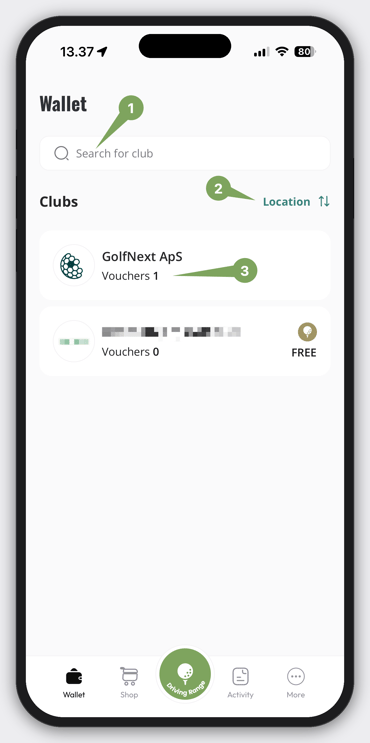
- Search Field
- Sorting: Sort alphabetically or by Location Distance
- See the number of vouchers at each club you have a relationship with.
- If you've received several identical vouchers, you'll only see one voucher, but you can see the total number clicking on the club.
- If you've received several identical vouchers, you'll only see one voucher, but you can see the total number clicking on the club.
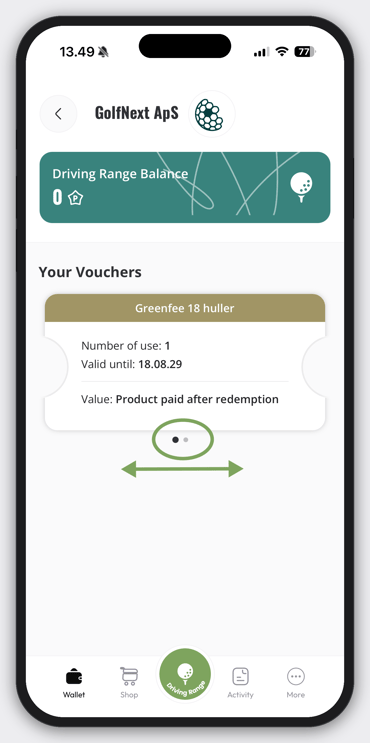
Tapping a club lets you see all your vouchers for that club.
-
If you have multiple vouchers for the club you can swipe left and right to find the correct one.
- Click on the voucher you want to redeem
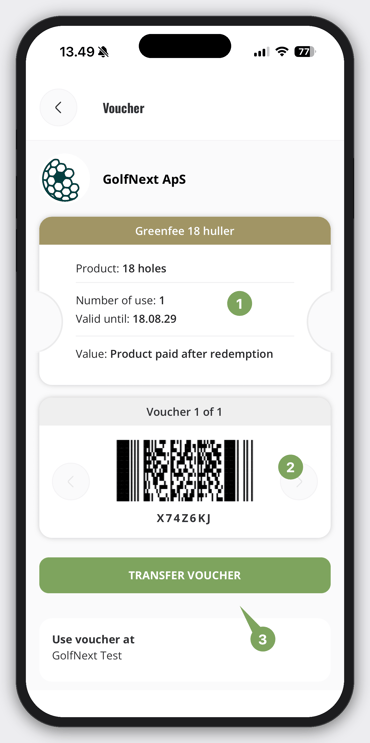
- Information about the voucher: Name, valid date, number of uses
- Scanable code useable at the clubs POS and a manual code if there is problems with scanner.
- The option to transfer the voucher to another person.
Transfer a voucher
Tip: Read the previous part of the guide to get to this part of a voucher transfer
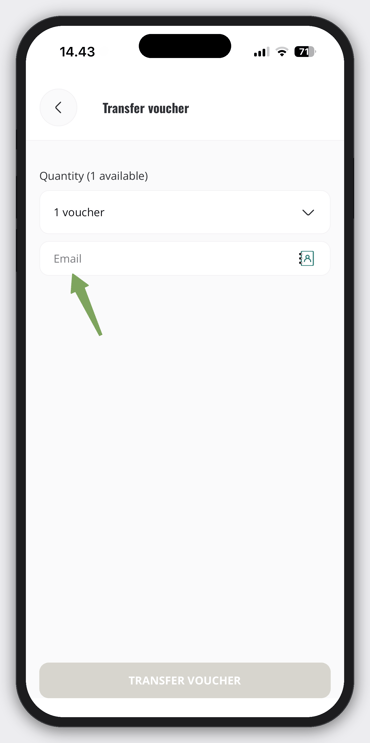
- Tap 'Transfer voucher' — You will see the following screen
- Enter a valid Email into the field
- Enter a valid Email into the field