
Has your club already created an account for you? Then you got an email from GolfNext with your login details: your email address as username and a password. In that case, download the app in step 1 and go straight to step 3 to log in.
When your golf club or driving range has the GolfNext payment terminal, you use your GolfNext account to buy and dispense range balls. We recommend the GolfNext app for the easiest way to do it. If you prefer not to use an app, your club can also give you an NFC card. Here is how to get started.
1. Download The App
- On your phone, open the App Store (iPhone) or Google Play (Android).
- Search for GolfNext and install the app. On an iPhone you can also use this link: Download the GolfNext app. On an Android phone: Get the GolfNext app on Google Play.
- Open the app.
2. Choose Your Country
- On the Select country screen, check that your country is right. The app suggests one from where you are. To change it, tap the country field and choose another.
- Tap Continue.
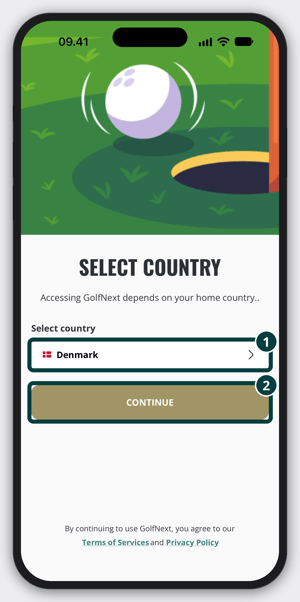
Your country decides which ways to log in you see. Under the button, the app tells you that by continuing you accept the Terms of Services and the Privacy Policy. You can tap either one to read it.
3. Log In
Use the way that fits you. If you don't have an account yet, go to step 4 instead.
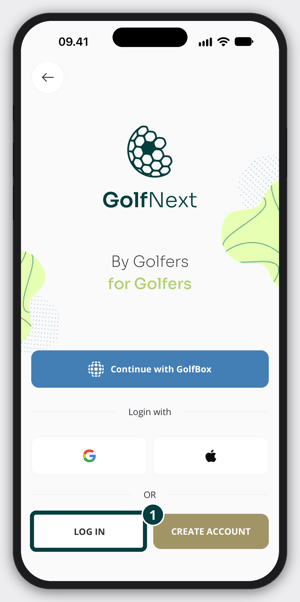
- You have an email address and a password. This is also the case when your club created the account for you.
- If the app shows several ways to log in, tap LOG IN.
- Type your email address in Email and your password in Password. To check what you typed, tap the eye icon at the right end of the password field.
- Tap LOG IN.
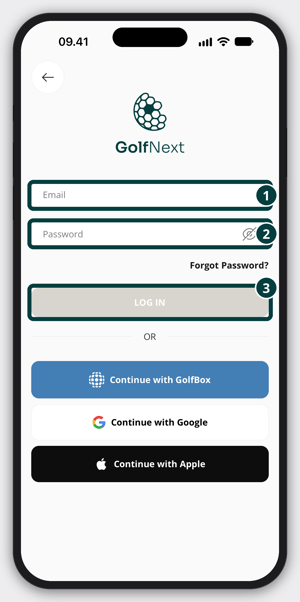
- You use GolfBox. If your country is Denmark, Norway, Iceland or Finland, the app shows Continue with GolfBox. Tap it and log in with your GolfBox details. This is the quickest way, and it brings your union member number into the app. In Sweden the button says Continue with MinGolf, and you log in with your Golf-ID and MinGolf password. See Cannot Log In To The App - Swedish Users.
- You use Google or Apple. Tap Continue with Google or Continue with Apple, or, on the screen where they only show as icons, tap the Google or Apple icon under Login with. Then follow the steps from Google or Apple.
The first time you log in with GolfBox, Google or Apple, the app may ask Do you have a GolfNext account?
- Tap NO if this is your first time. The app opens a screen called create account. Tap CREATE MY ACCOUNT.
- Tap YES if you already have a GolfNext account with another login. Type that account's email address in Email and its password in Password, and tap Update, so your login is connected to the account you already have.
4. Create A New Account
No GolfBox, Google or Apple login, and no account yet? Create one with your email address.
- On the login screen, tap CREATE ACCOUNT. If your country only shows the email login, tap SIGN UP next to Don't have an account?
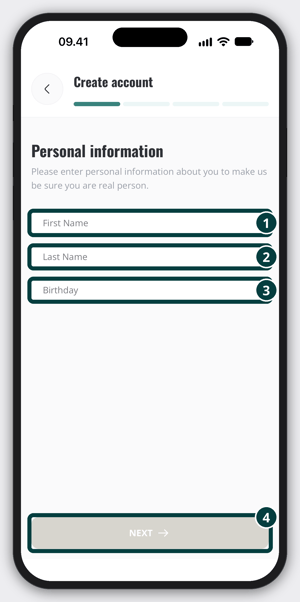
- On Personal information, type your First Name and Last Name, and choose your Birthday. Tap Next.
- On Your address, check your Country and, if you like, type your Postal code. Tap Next.
- On Your contacts, type your Email. You can also add your Phone number. Tap Next.
- On Security, type a password in Password and type it again in Repeat password. The password needs at least 9 characters, with a letter and a number. Tap Create.
Tap Back on any screen to change what you typed. If the app says the email already exists, you already have an account with that address. Log in as described in step 3, or tap Forgot Password? if you can't remember the password.
5. Confirm Your Email
After you create an account with your email address, the app shows Check your email. We have sent you an email with a Confirm button.
- Open the email on your phone and tap Confirm. The link works for 7 days.
- Go back to the GolfNext app and tap PRESS HERE AFTER CONFIRMATION.
No email after a few minutes? Check your spam folder. Tap RESEND EMAIL to get a new one. The button is ready after a short countdown of 60 seconds. If the app says Email not verified yet, the link hasn't been opened yet.
6. Allow Your Location
The app needs to know where you are to find your club and to connect to the ball machine, so allow it when your phone asks. If location is turned off for GolfNext, the app shows Location access is turned off when you open the dispenser screen. Tap Settings and allow GolfNext to use your location. Choose precise location if your phone offers it. If precise location is off, the app can't tell exactly where you are.
7. Take A Look Around
The first time you log in, the app shows a short tour. Tap Next to go through it, or Skip. The menu at the bottom has four places:
- Wallet - your clubs, with the points and vouchers you have at each one. Use Search for club to find a club. Nearest club shows the club you are close to.
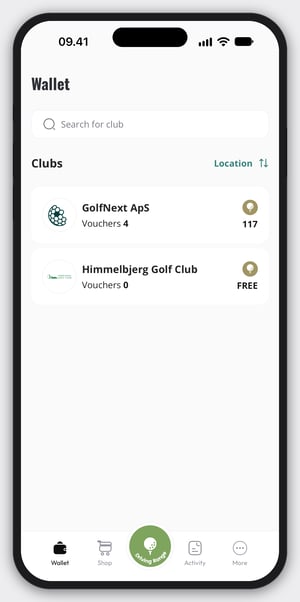
- Shop - the products clubs sell in the app, such as points for range balls and vouchers.
- Activity - what you have bought, used and dispensed.
- More - your profile and settings.
The big green Driving Range button in the middle of the menu is for dispensing balls. Want to see everything the app can do? Read GolfNext App Walkthrough.
8. Get Points
You spend points on range balls. If your club gave you free balls, you don't need points. See Using Free Balls With The App. Otherwise, buy points in the app: tap Shop, tap Driving Range, choose your club and then a product. The full guide is How To Purchase Points For Dispensing Balls In The App.
9. Dispense Your Balls
- Walk to the ball machine and place a basket under it.
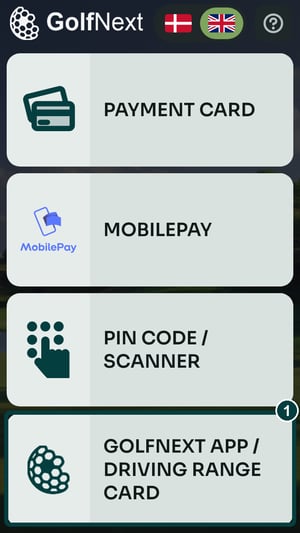
- On the payment terminal, tap GOLFNEXT APP / DRIVING RANGE CARD.
- In the app, tap the green Driving Range button in the middle of the bottom menu. The dispenser screen shows your points at the top.
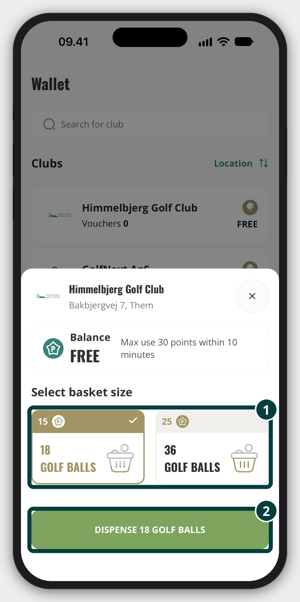
- If your club has more than one ball machine, tap the one you are at under Select dispenser. If it has more than one basket size, choose the one you want under Select basket size.
- Tap the green button at the bottom. It reads Dispense followed by the number of balls, for example Dispense 50 golf balls. The app shows Successfully dispensed, and your balls come out.
Running low on points? If your club sells points in the app, you see a Top-Up button on the dispenser screen. It takes you to the club's products.
If You Use An NFC Card Instead
You don't need the app to dispense balls. Ask your club for an NFC card. Your club connects the card to your account, and the points stay on your account, not on the card. At the ball machine, tap the card on the terminal and the machine uses your points.
If Something Goes Wrong
- Verify Your Device: you can only stay logged in on one device at a time. If you log in on a new phone, the app sends a verification code to your email. Type it in Enter Verification Code and tap Confirm.
- You're too far from the ball dispenser: move closer to the machine and try again.
- Can't log in: check your email address and password. See Forgotten Password to set a new one.
If the app says Dispenser not ready, the ball machine isn't waiting for the app yet. Tap GOLFNEXT APP / DRIVING RANGE CARD on the payment terminal first, then tap the green button in the app again.
Thank you for reading - feel free to contact us in case you have any questions, suggestions or general feedback.