
A large number of vouchers are exchanged annually between different clubs.
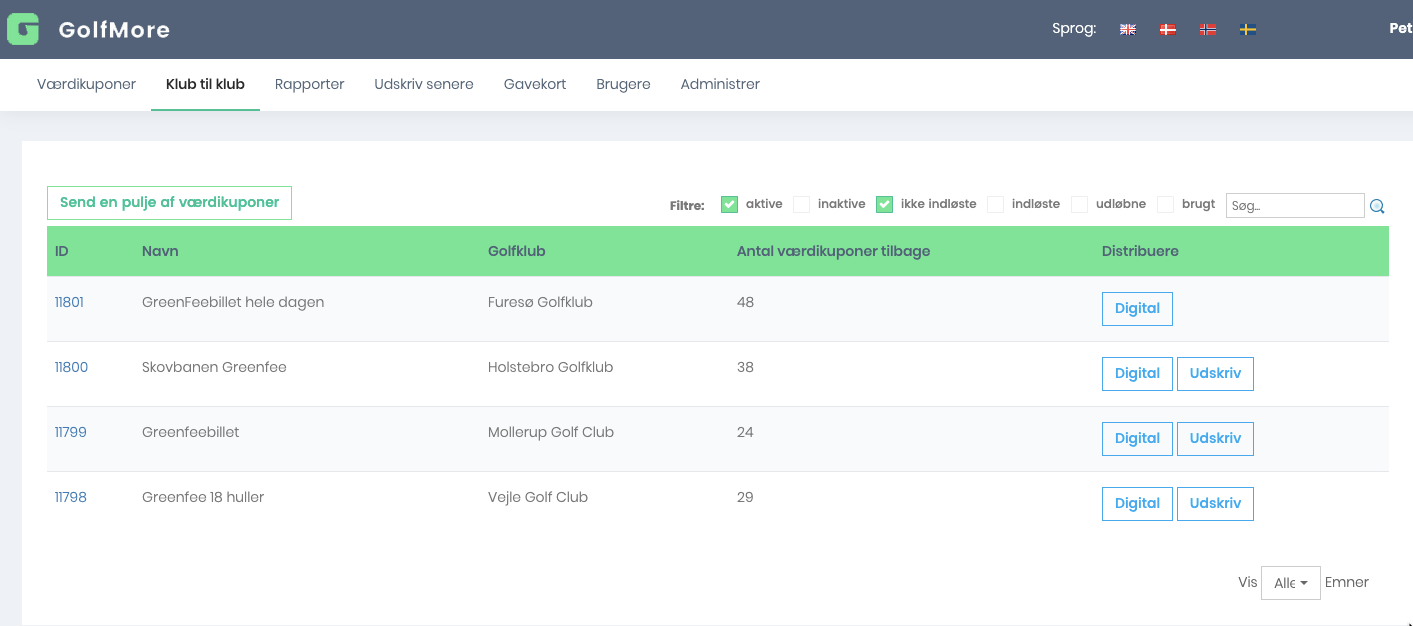
You must create a voucher order in the normal way.
When you have to select a customer, a new Clubs tab has appeared. Press it.
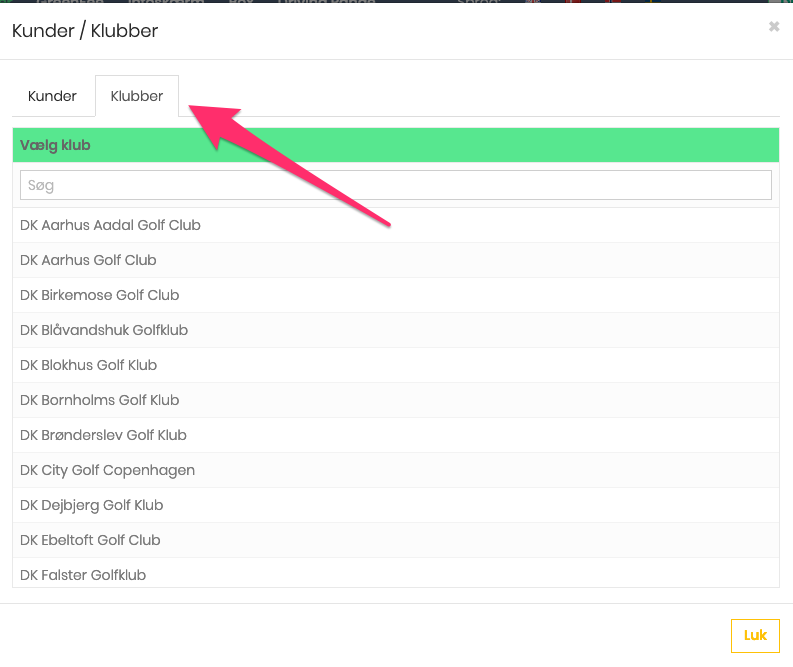
Search and select the club you would like to send to. If you can't find the club, then they do not have the GolfNext voucher management system.
Once the club has been chosen, you must decide whether the club that receives the vouchers should make the vouchers personal, so that it does not become a commodity. If you mark this, the receiving club can only send them on digitally.
You must also decide how many vouchers the club will receive.
You know the rest of the flow. The recipient club will receive an email that you have sent them X amount of coupons.
Send or print vouchers to players
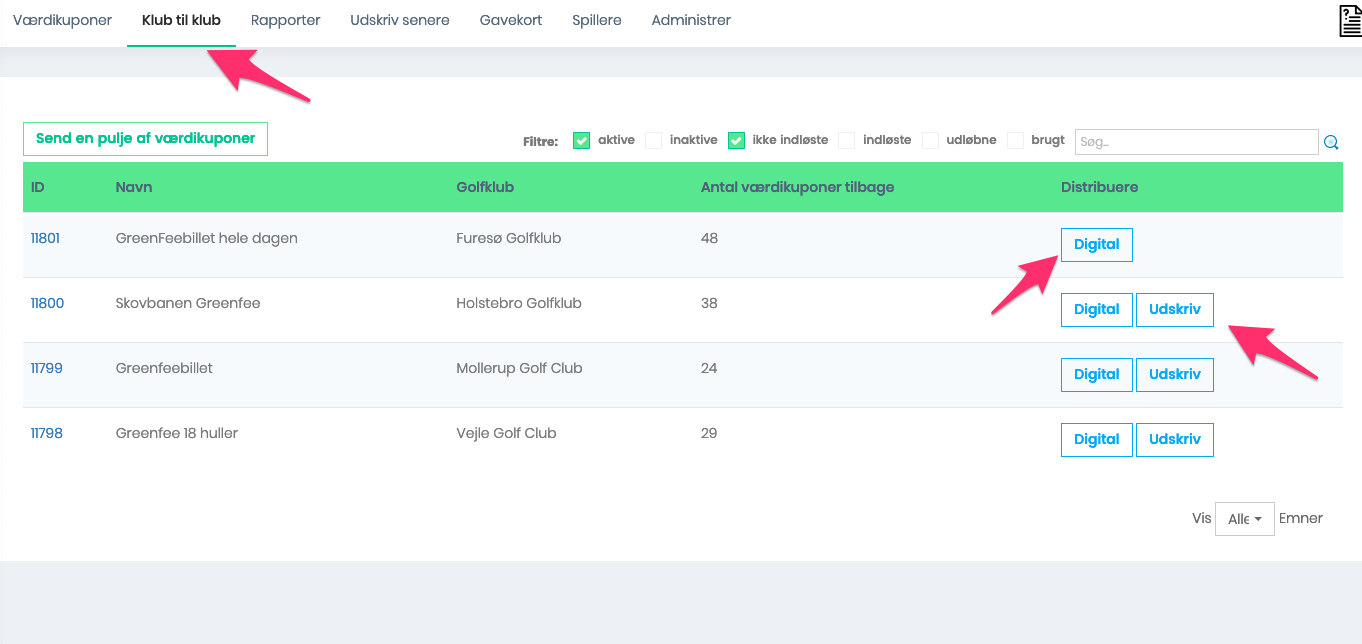
When you have sent vouchers digitally or printed, the number of vouchers left will be adjusted.
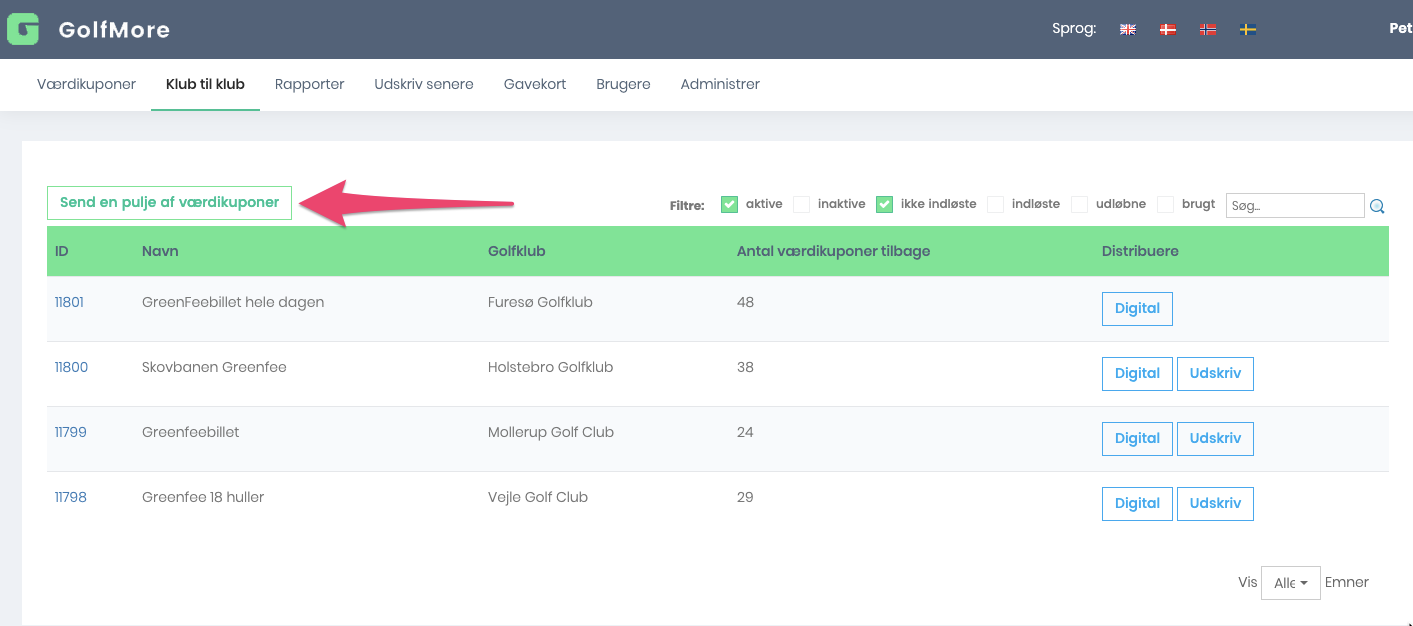
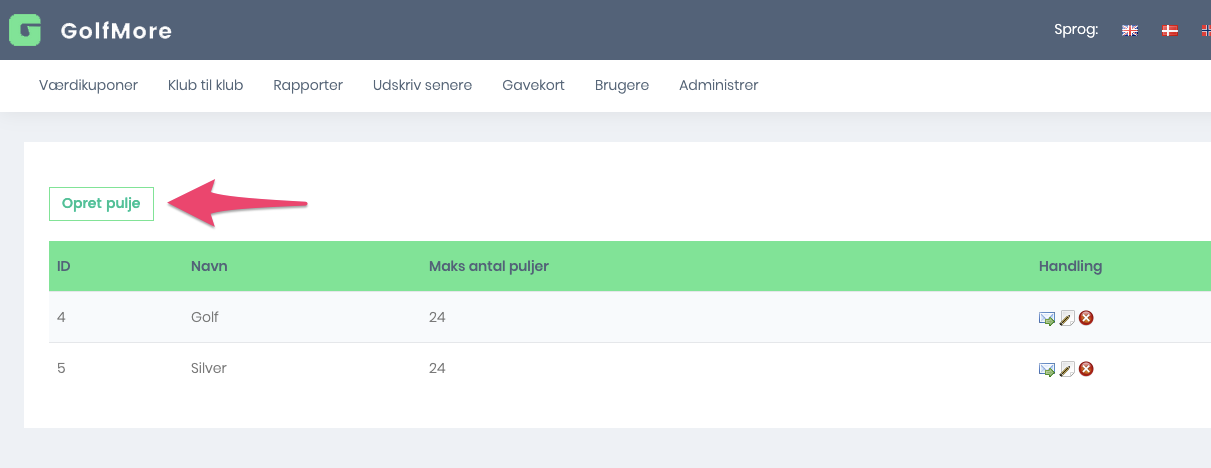
- give the pool a name
- specify in number how many vouchers each individual recipient must have of each voucher
When you have filled in the necessary information, press Create.
You will then see an overview of your various pools
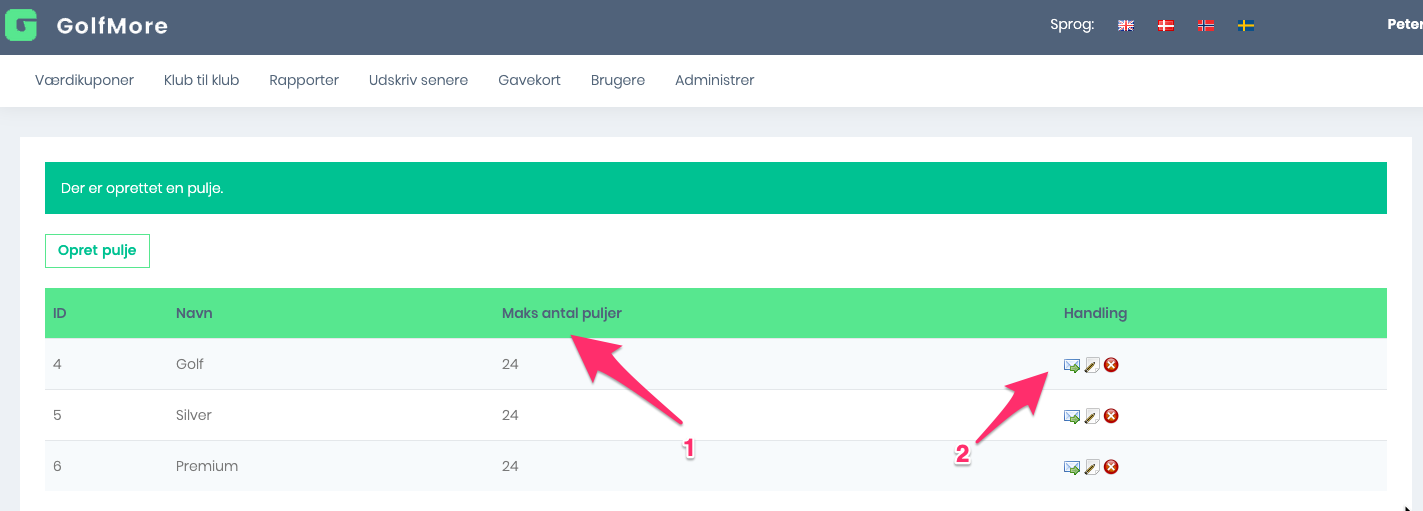
- 1: Maximum number of pools. This is how many times you can send this pool with this content. The number corresponds to the voucher order in which you have the fewest remaining that is contained in the pool. If you send another type of pool where the same vouchers are included, the number will drop for all pools with this voucher. Put another way - no vouchers are reserved for a specific pool.
- 2: Action . If you press the mail icon, the process starts with distributing a pool to a customer. If you press the pencil, you can correct the contents of a pool. Eg. also, if one type has been "sold out", you can choose to upgrade with another type of voucher. If you press the red cross, you delete the pool.
Distribution of pools. It is done in the same way as regular vouchers.
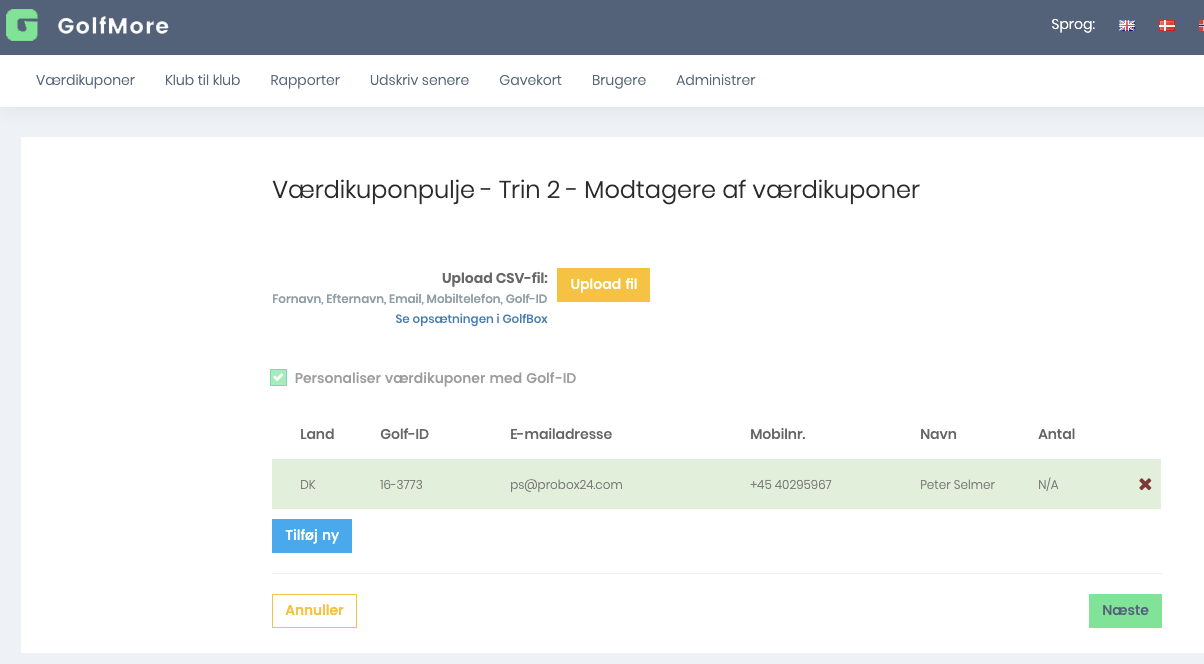
However, you should be aware that if just one sending club has indicated that the vouchers must be personalized (so that they cannot be resold), then this will apply to all the vouchers in the pool.
Thank you for reading - feel free to contact us in case you have any questions, suggestions or general feedback