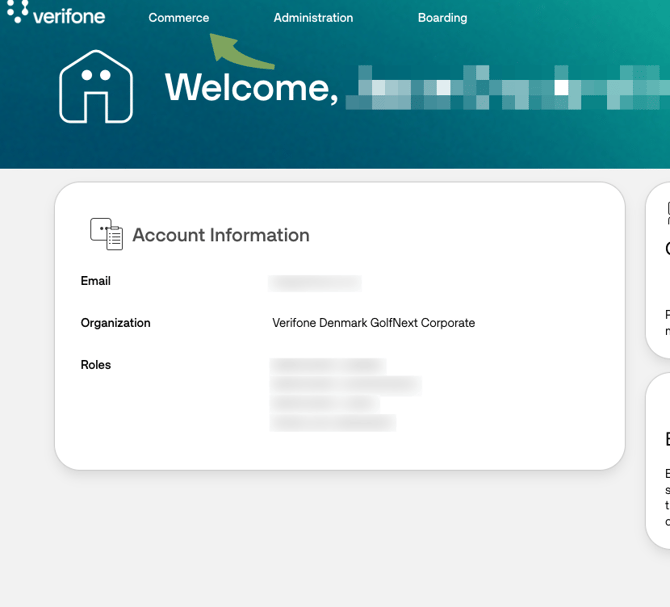
Login in to the Verifone Portal
Under the Commerce tab, you'll find transactions, payout lists, monthly invoice overviews with fees, and more.
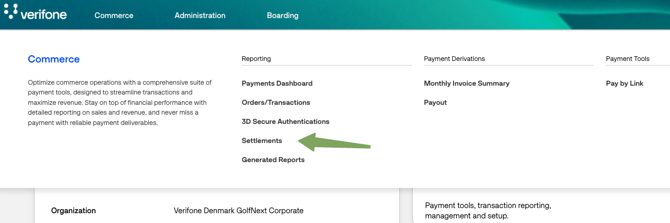
Settlements
- Go to Commerce, then click Settlements.
Under Organizations, make sure the checkbox next to your business name is ticked. Click the small arrow, select your business name again, then click Apply.
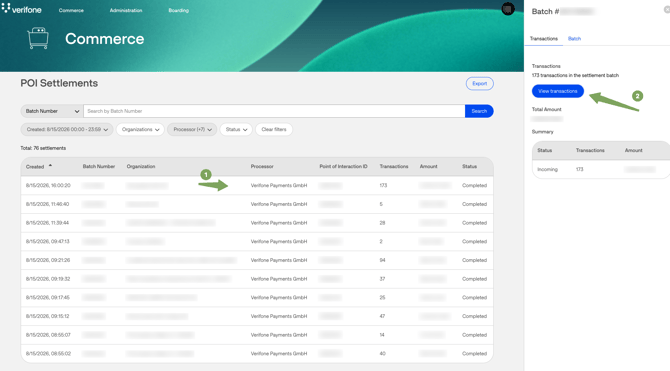
- Click a settlement line to view its transactions
Here is an overview of your transactions that have been settled for a given period - Click on View Transactions to view all the transactions individually
Transactions
- Here you'll see all transactions for the selected settlement batch.
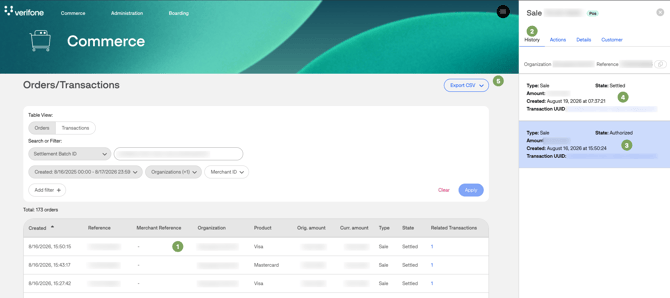
- Click any transaction line for more details, such as the date the amount will be paid out.
- The menus:
- History - explained in points 3 & 4
- Actions - Refunds currently not working (Will update guide once it's possible)
- Details - More details about the POS and transaction
- Customer - Customer details such as Card Number
- The transaction date, time and amount.
- The Settlement time of the transaction.
- It is possible to download the transactions as a CSV file
Transactions Search
If you want to search transactions on a given day or period, you can do this easily
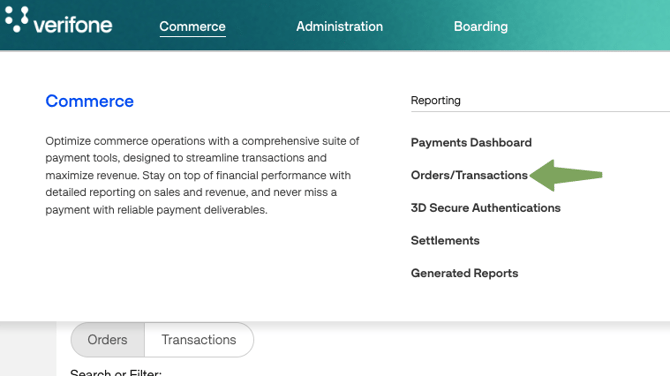
- Under Commerce, choose Orders/Transactions
Search Filters
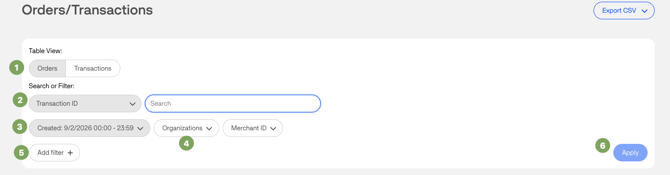
- Choose whether it's Orders or Transactions
- The dropdown menu allows you to search on any known attributes such as Car Number
- Can limit the search down to the minute if wanted
- Make sure your Organization is chosen
- Can add additional filters, similar to #2
- Remember to press Apply to do your search
Opening the CSV file in Excel
- Open the downloaded file in Excel.
- Select column A.
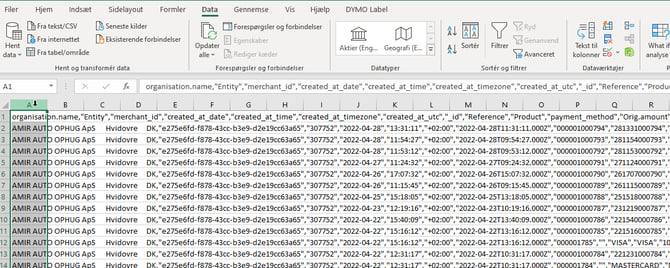
- Go to Data, then Text to Columns.
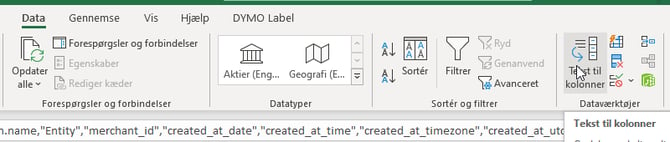
- Choose Delimited, and click Next.
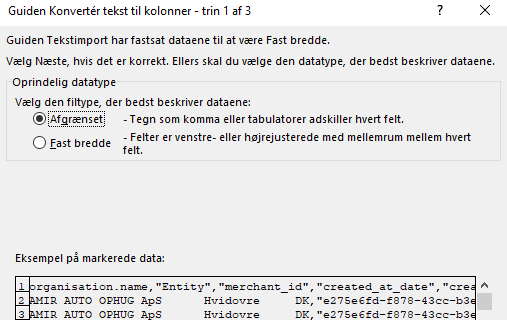
-
Select Tab and Comma, then click Next.
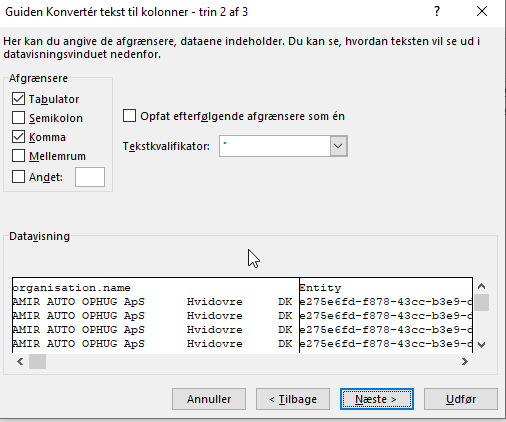
-
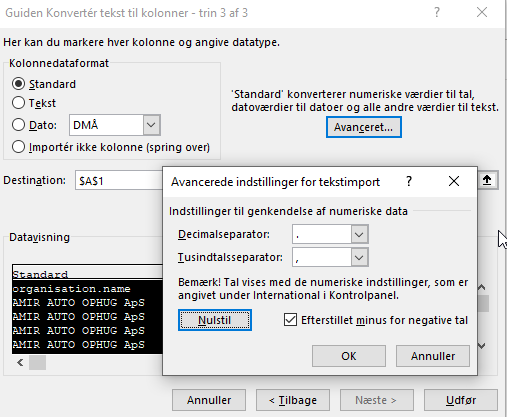
Click Advanced, set a period as the decimal separator and a comma as the thousands separator, then click OK and Finish.