
How to find out what's wrong with the printer
Look at the printer's status light. It's on the side of the receipt printer and glows green or yellow.
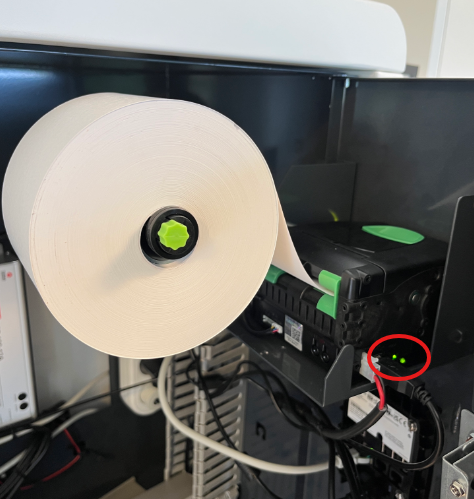
If the light blinks yellow, pay attention to the number of blinks.
- 3 yellow blinks – the printer isn't gripping the paper. Try feeding the paper further into the printer.
- 4 yellow blinks – there's a paper jam. Open the printer and remove the paper, then close it again and feed the paper back into the opening.
How to load the paper correctly
There are two types of printer models, but both work in almost the same way.
First, open the receipt printer at the top and remove the paper completely.
Then close the printer again and slowly feed the paper into the opening, marked with the red circle.
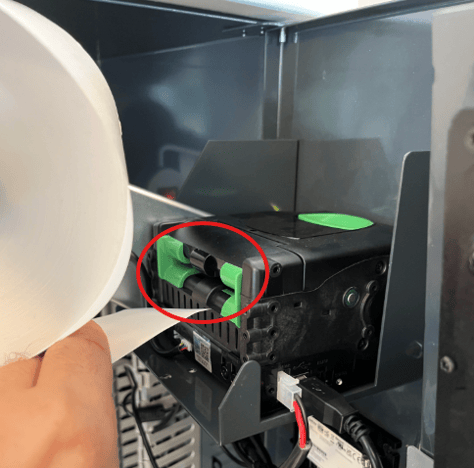
Tip: cut the paper end straight before feeding it in – a curled edge can stop the printer from gripping it.
Once you've fed the paper in far enough, the printer's motor will start running, and as you feed it a little further the printer will grip the paper and pull it into place by itself. It will then cut off a piece of paper on the other side of the lid, and the status light should switch to solid green.
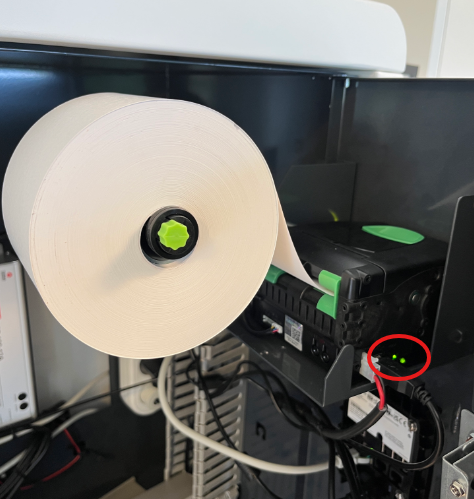
If the printer still isn't working, clean the printer's blade
Over time, the printer can fill up with paper dust, which creates a blockage in the system.
To fix this, you just need to expose the printer's blade and clean it. Here's how:
Look for the hole at the top right of the printer. Inside, you'll see a small green screw – it's also visible from the front, as shown in the second picture below.
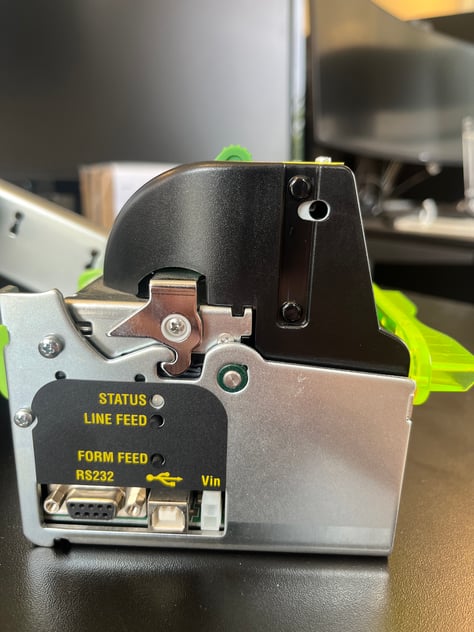
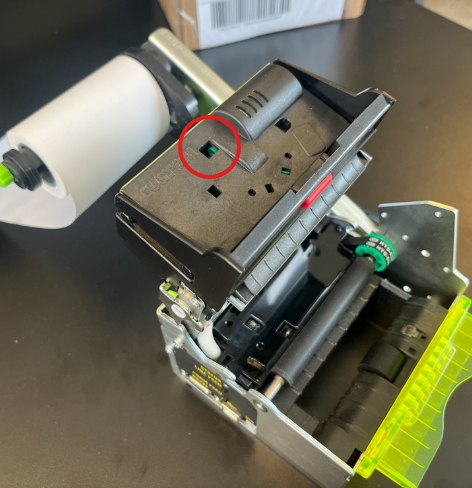
Turn this screw with a long screwdriver until the printer's blade comes out. It takes a little while, but eventually you'll be able to see the blade, especially on both sides where it sticks out more.
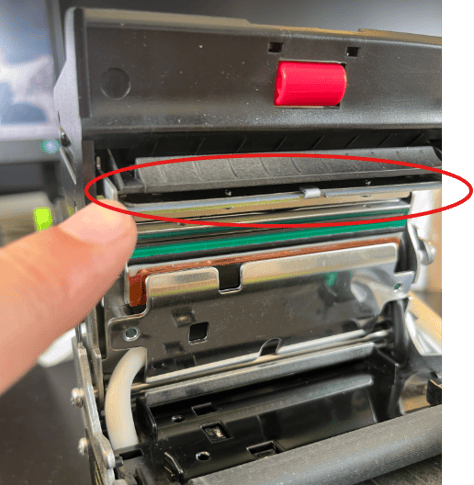
Once you can see it, blow it clean of dust and close the printer again – it will reset the blade by itself. Now try feeding the printer with paper while it's closed until it grips on its own. The light should then turn solid green again and the printer is ready to use.
Still not working? Contact support@golfnext.com or call (+45) 70 70 79 99.